
Grow Payment Pages help businesses collect payments through secure, ready-made payment forms tailored to different checkout needs.
This page explains the available payment page types, including credit card, Bit, Bit QR, Google Pay, Apple Pay, bank transfer, SDK wallet, and device-based payment flows.
Businesses can choose the right experience for each scenario, from a hosted payment page to embedded checkout, Mobile payments, or in-person payment completion on a POS terminal.
It is needed to understand which payment flow best fits the customer journey, payment method, screen format, and customization requirements.
Grow Payment Pages provide multiple page codes and setup options, making it easier to support online, mobile wallet, QR, bank transfer, and physical device payments from one payment system.
Important note :All identifiers in this documentation are for demonstration purposes only.
For the development of the API, you must receive from us unique identifiers for you
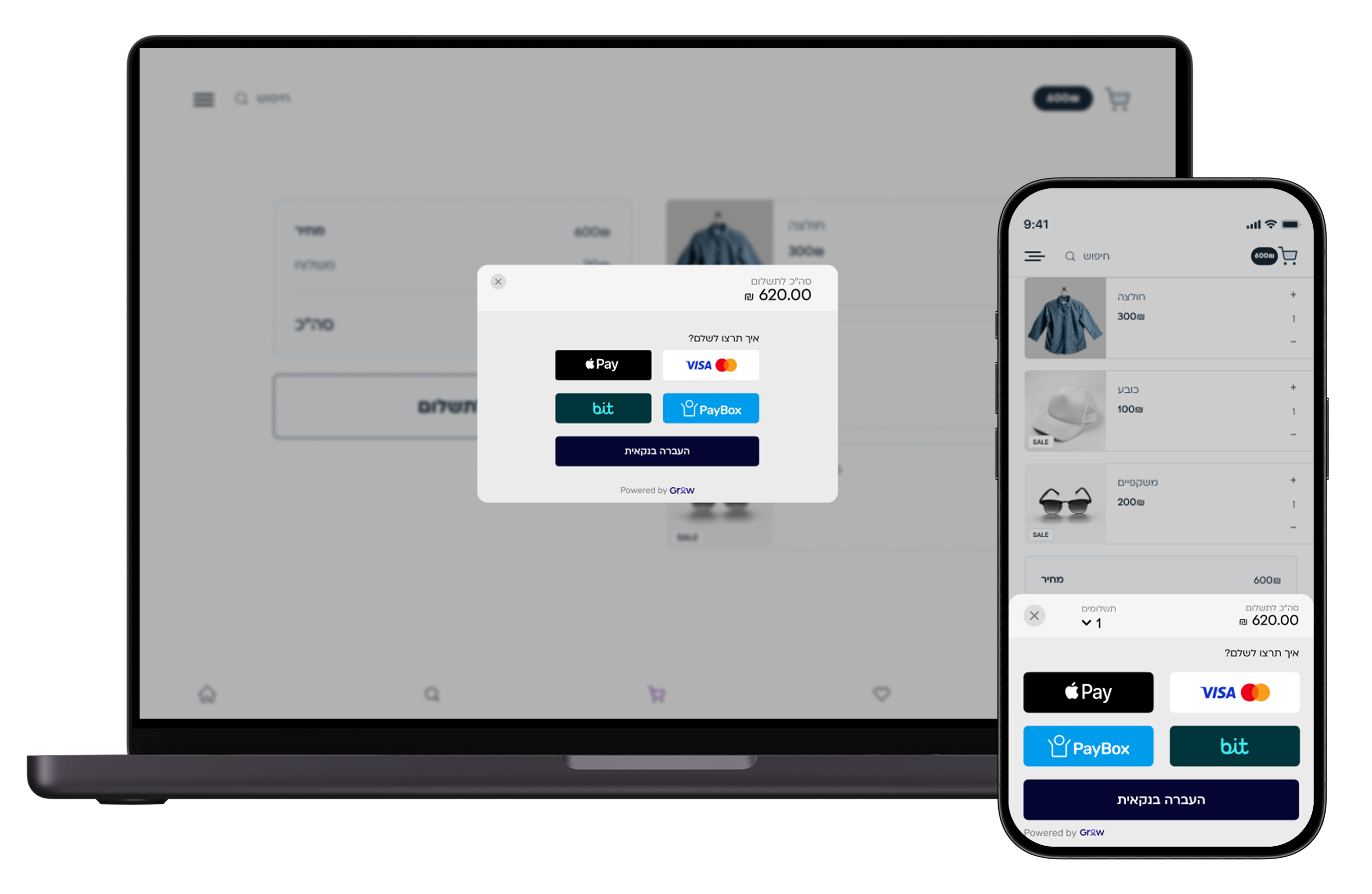
SDK (Software Development Kit) wallet
pageCode : c34d1f4a546f
● Provides a modular and well-designed payment process.
● Offers a seamless solution for online payments, eliminating the need for redirects or iframes that may hinder user experience.
● Ensures flexibility in payment options and customization.
● Click here (Link here)for a guide on implementing the SDK.
Generic Payment Page
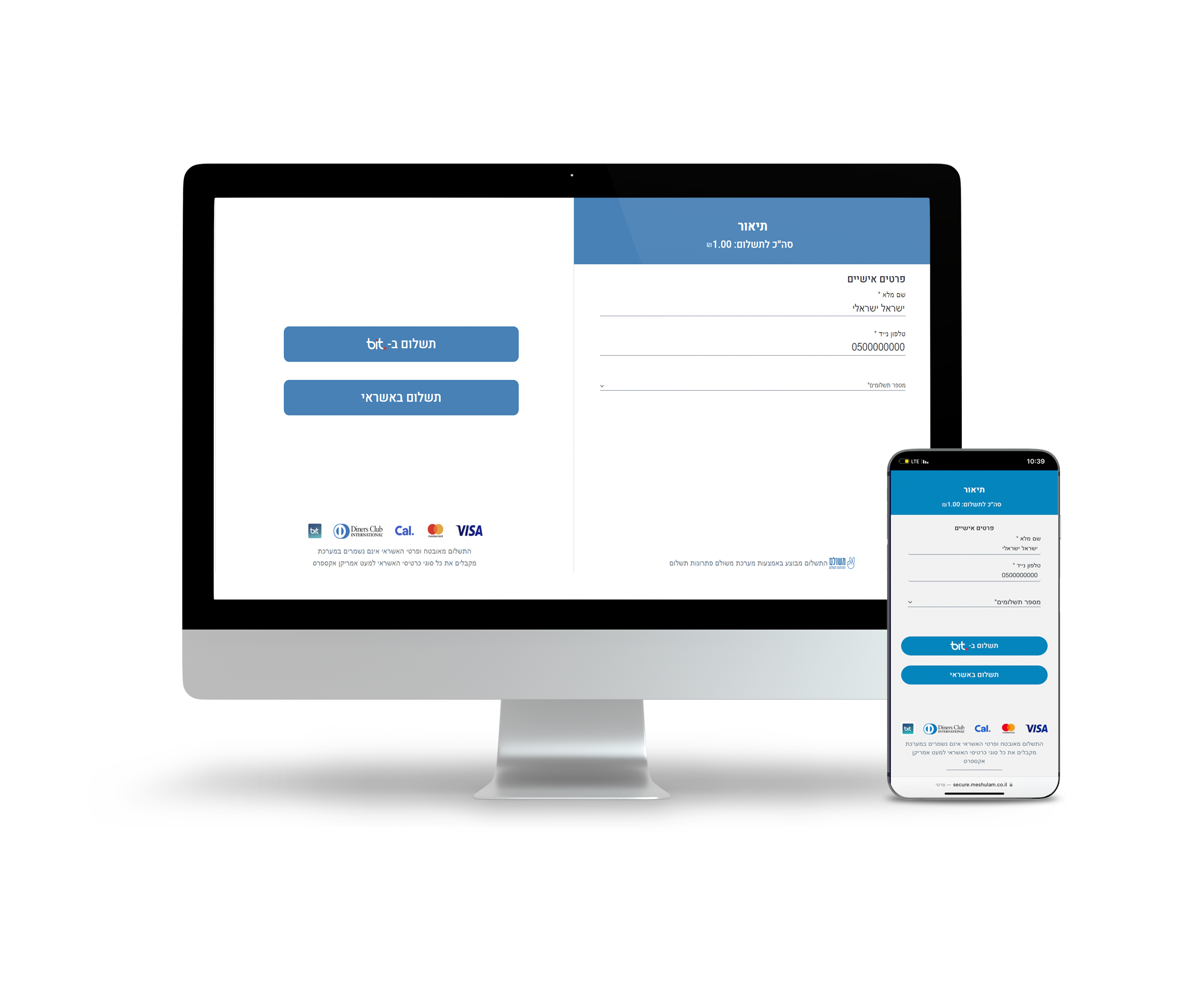
PageCode: b73ca07591f8
● Accepts payments with Credit Cards or Bit.
● Customization options include adding customer information fields, logo, and notification settings (though this is not recommended to avoid confusion).
● Allows up to 2 additional fields from existing options, such as Full Name, Phone, Email, Name for invoice , ID number, City, Street & house numberand more.
This is what the page looks like (default color, choosing full name & phone fields):
Credit Card Payment Page
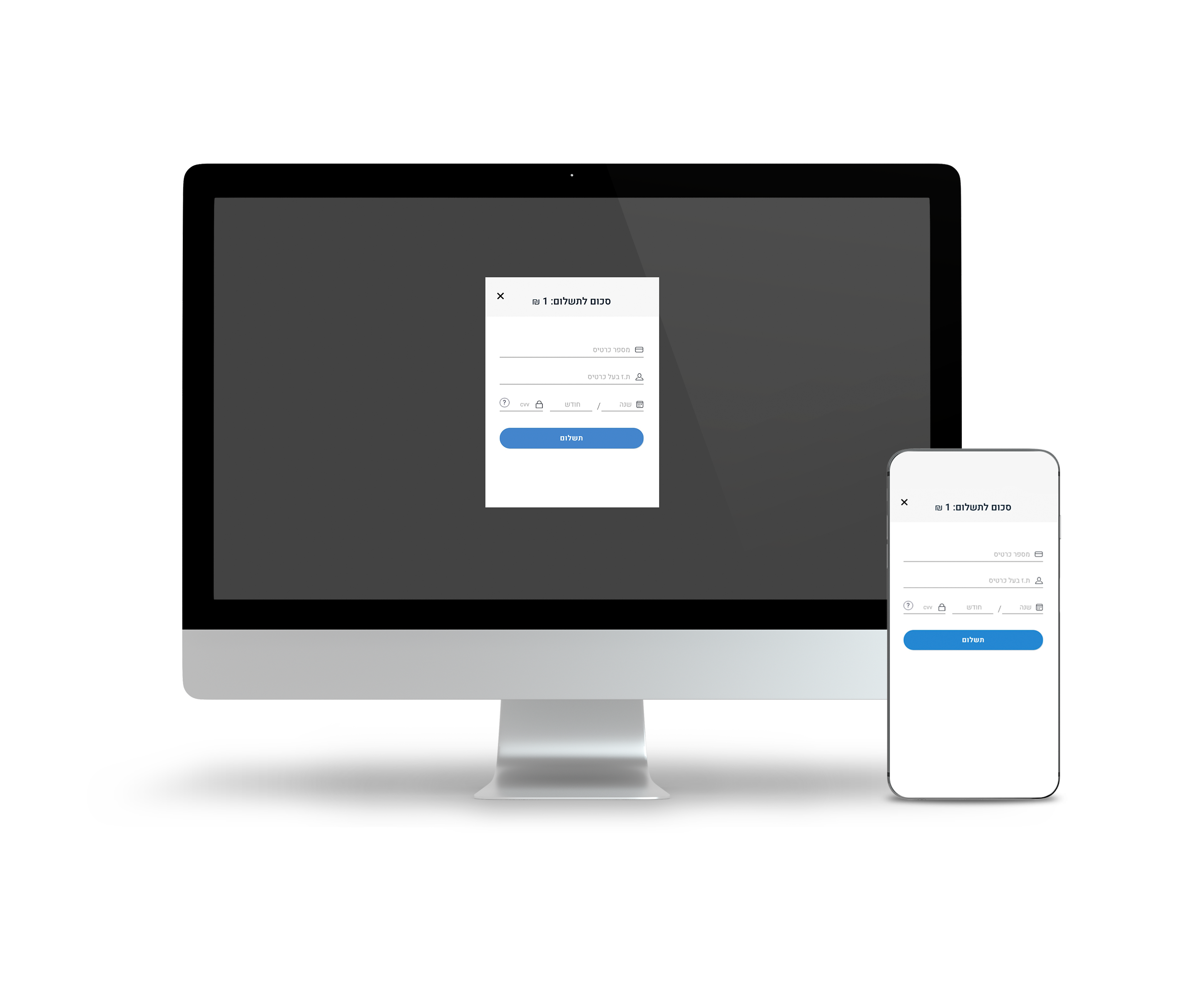
PageCode: 0b7a16e03b25
- Offers flexibility in screen size, background display,
and icons placement on the bottom of the screen.
● Allows customization of button colors and text.
● Supports regular and recurring payments.
This is the look of the regular page as a small screen:
Google Pay Page
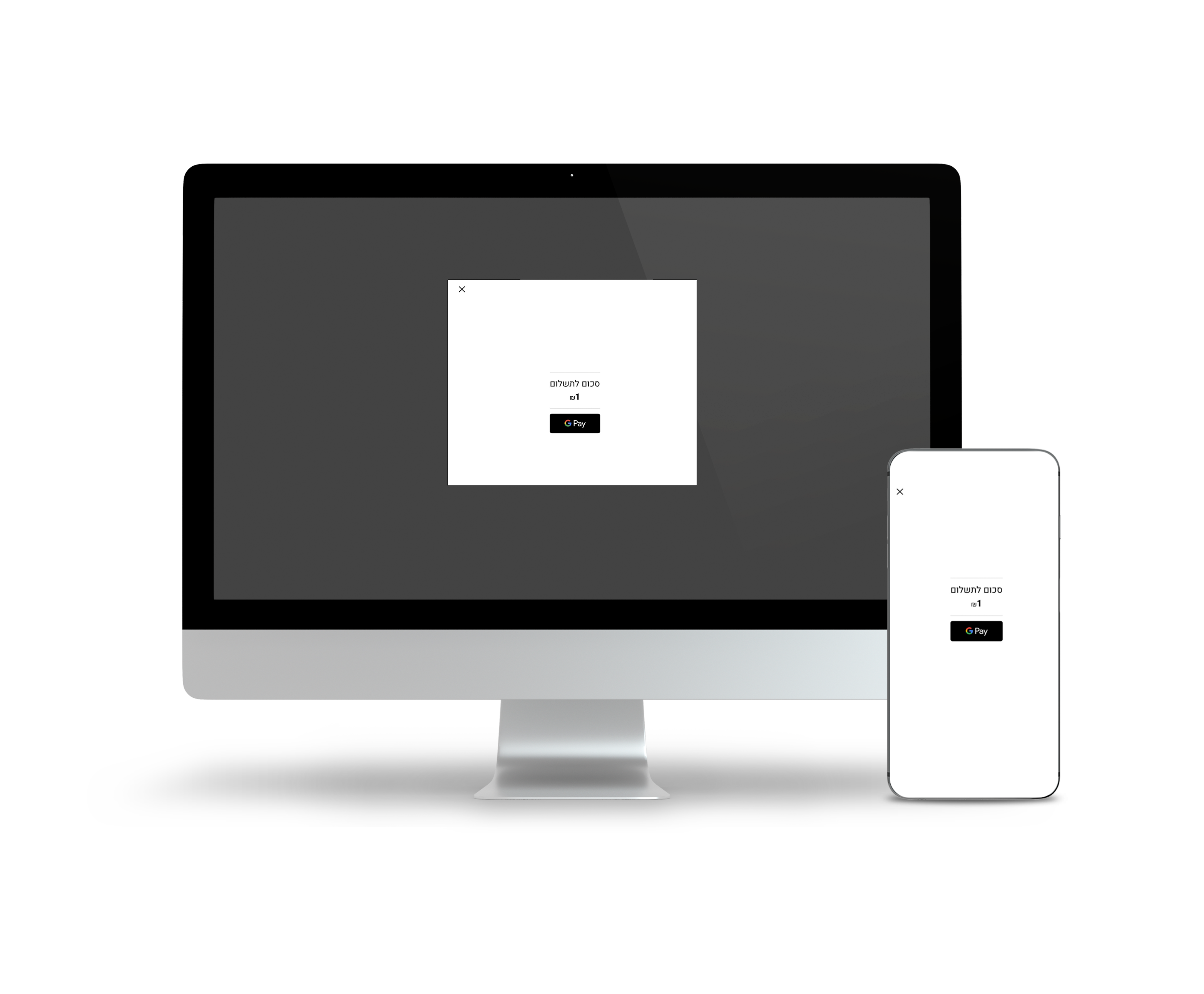
PageCode: 77a2993849cd
- Note for using Google Pay -
The GooglePay payment must be displayed in the Chrome browser on Android only.
Add the following tag to the iframe:
allow="payment"
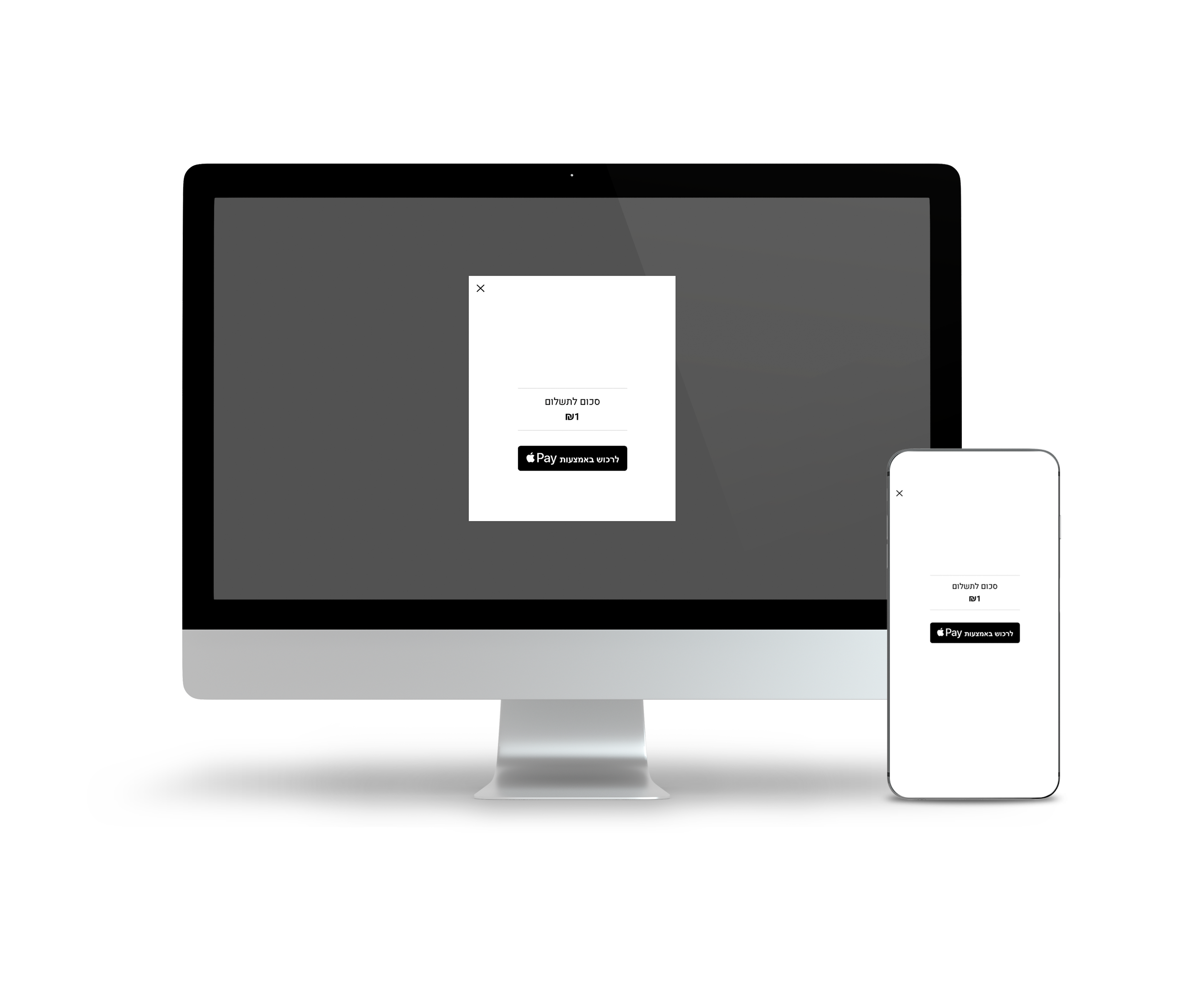
Apple Pay Page
PageCode: 9eeea7787d67
● Note: Domain approval is required when using IFRAME.
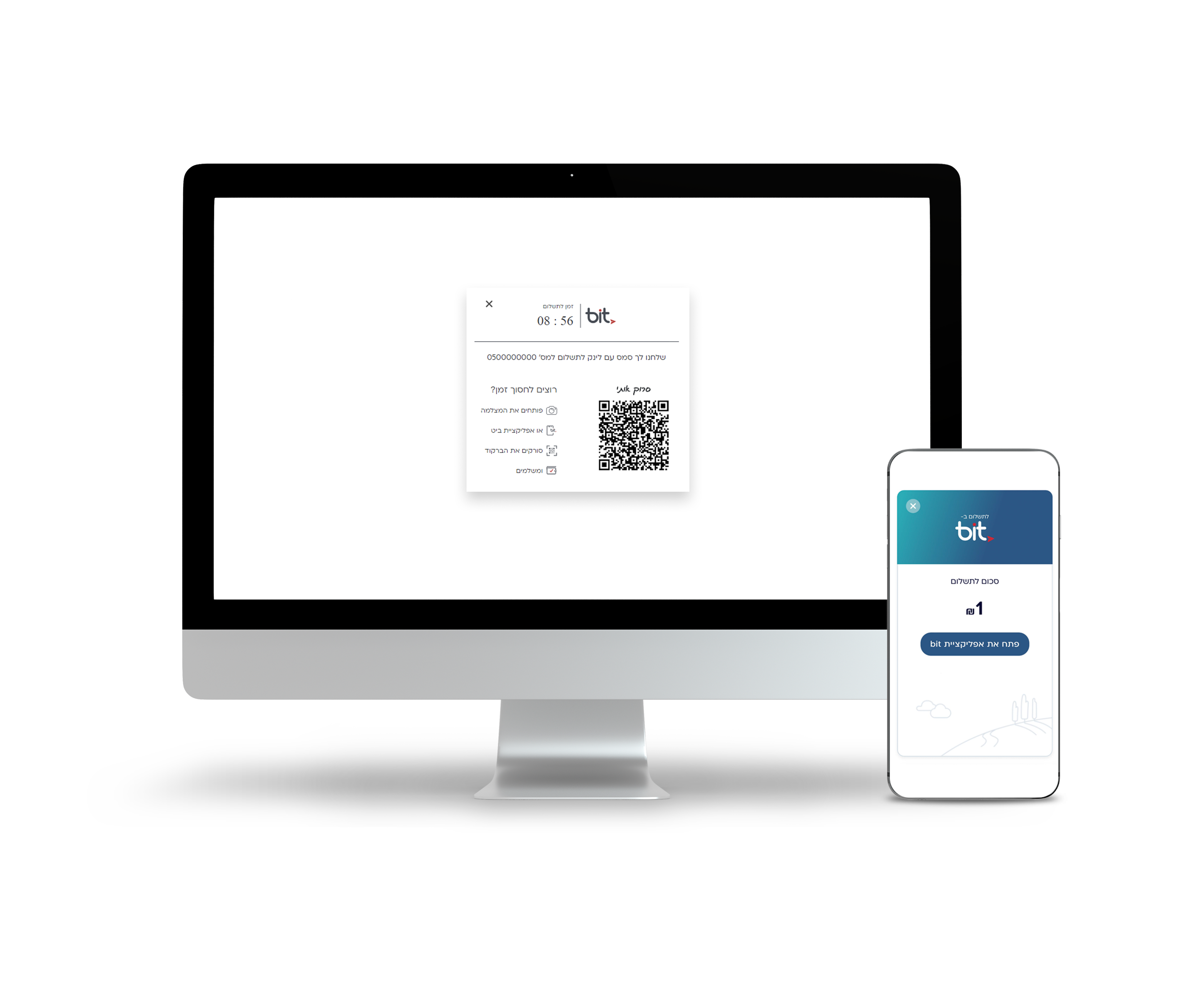
Bit Payment Page
PageCode: e20c9458e9f3
● Optimised for full-screen display on mobile devices.
● By default, SMS notifications are not sent after Bit transactions (adjustable via settings)
Designed for a straightforward user experience:
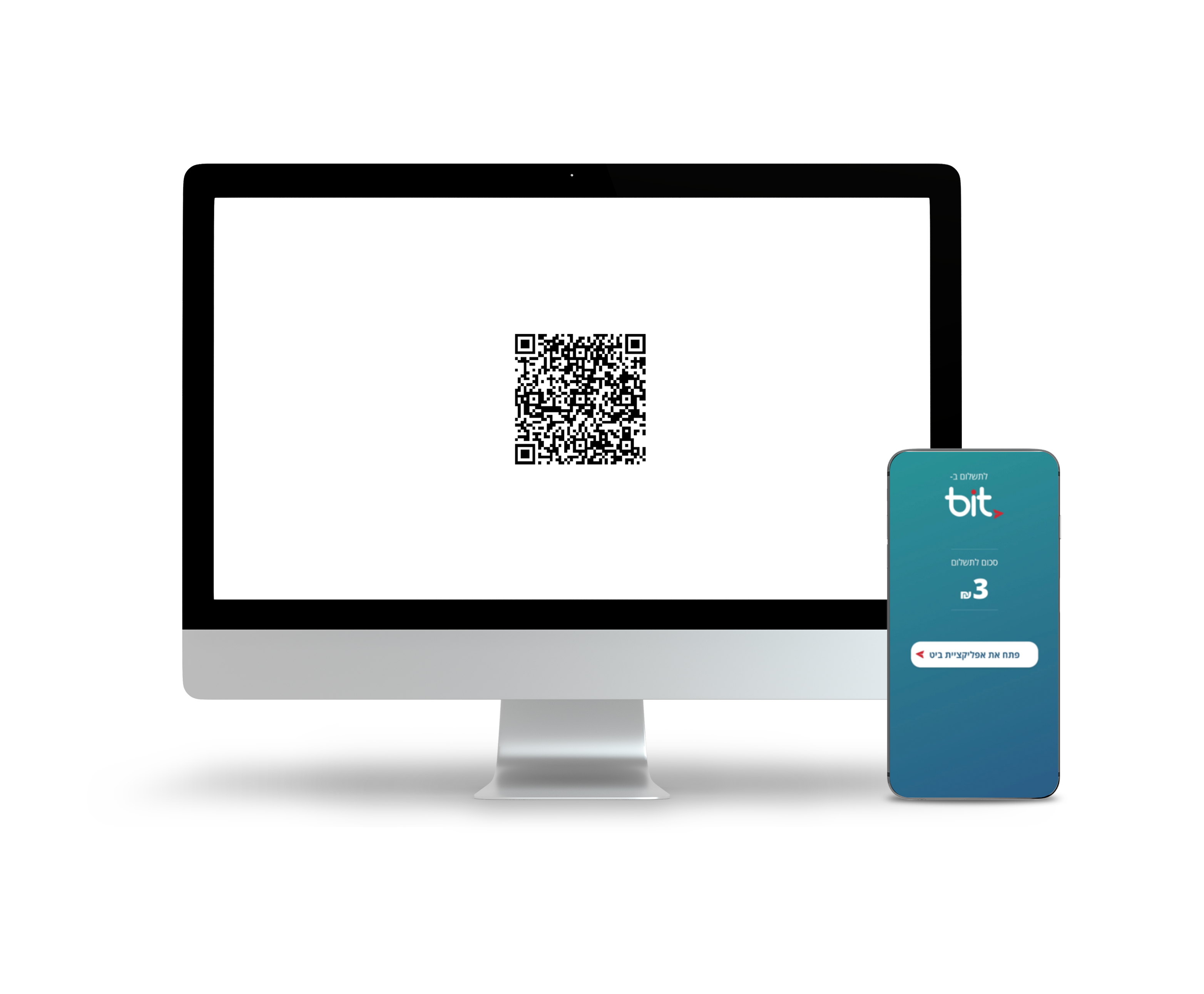
Bit QR Payment Page
PageCode: 39bf173ce7d0
● By default, SMS notifications are not sent after Bit transactions (adjustable via settings).
● Offers a quick and convenient way to process Bit transactions.
Send Transaction to Terminal
This flow is designed for physical checkout scenarios where the payment is initiated from your system, while the customer completes the payment on one of the following target devices:
- A GROW POS terminal
- An Android device running the GROW app
This flow helps businesses reduce manual entry at the counter and keep the payment amount, order details, and checkout flow aligned between the system and the payment device.